
Microsoft Lists: The tool that revolutionises organisation
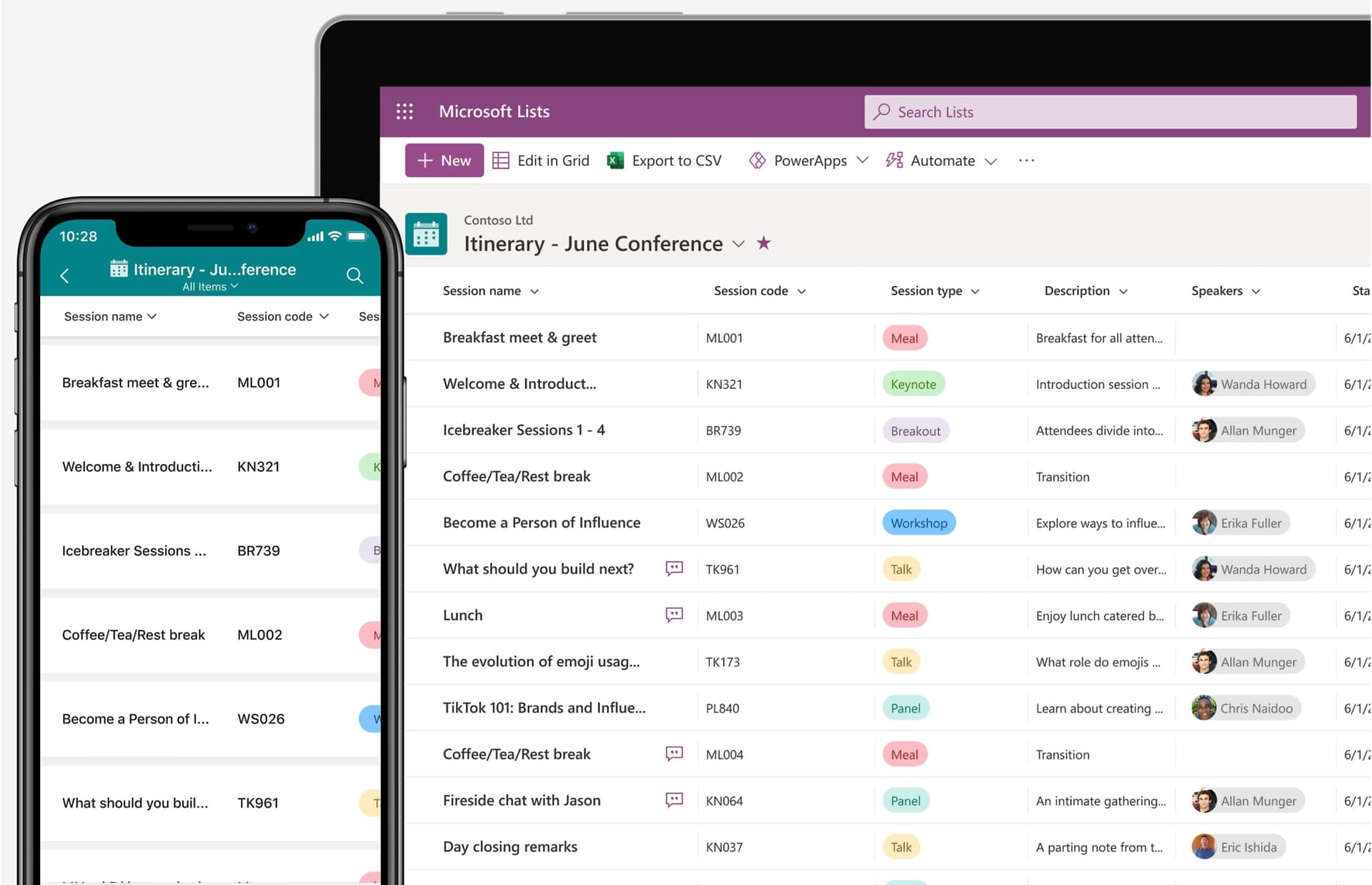
Efficiency and collaboration are two fundamental pillars for the success of any organisation. With the aim of improving these aspects, Microsoft presents a new tool: Microsoft Lists, which is based on SharePoint Online lists and is characterised by its versatility and functionality. It allows organisations to optimise their workflows and improve collaboration between teams. Let’s take a look at all its features.
UNLOCKING THE POTENTIAL OF TEAMS
Working very similarly to SharePoint lists, but with a more hands-on approach and an interface dedicated exclusively to the use of lists, Microsoft Lists is designed to reduce the effort of keeping everyone organised and moving forward together.
Some of the features that make Lists an essential tool for any team looking to improve their productivity:
- Microsoft Lists was designed with collaboration in mind, but it is also useful for personal use.
- It allows efficient management of any type of information and sharing of resources between teams of all sizes.
- It has a clear and intuitive interface that makes it easy to use.
- It offers great flexibility and customisation, whether using predefined templates or creating lists from scratch.
- It is integrated with Microsoft 365. This allows it to be used as an interface to an existing SharePoint list or independently, saving the list to OneDrive. In addition, it can benefit from interaction with the platform’s other applications, such as Teams or Power Platform.
USER EXPERIENCE (UX)
Microsoft Lists makes recurring improvements to the user experience. For example, for some time now we have been able to see the faces of the people who are working with us on the list at the same time and which part they are working on. In this way, we could share a list in a meeting and see the other guests come in and start moving through the list making updates with us.

It is worth noting the simplicity with which Lists allows columns to be added to a list. This can even be done in special cases such as an image column (which supports drag and drop) or a ratings column (with stars or likes). On the other hand, this might require some extra configuration steps in the SharePoint interface.
In addition, with the Microsoft Lists mobile app we can work with our lists from anywhere. We can create, edit and browse lists from a mobile device. If necessary, it is possible to log in with multiple accounts.
VIEWS
Lists allows you to use custom views to organise information for specific audiences or scenarios. This makes them easy to create and access through tabs at the top of the screen.
It also provides useful view options such as panel mode or calendar mode and specific filters can be selected for each view. Furthermore, the filters applied to the current view are clearly displayed in the form of pills. This allows you to remove them individually or as a whole to display all elements.

TEMPLATES
By using templates, with Microsoft Lists you can lay the foundations of a workflow in a very fast and intuitive way. The templates allow us to start working immediately, having already incorporated the common characteristics for the type of list we want. It doesn’t matter whether it is an incident management list or a list of kitchen recipes. Templates with built-in approval systems are also available, such as ‘Travel requests’ and ‘Content scheduler’. These are managed through the approvals application in Teams or directly in the list.
Organisation templates allow us to package a customised list layout, views, formatting and rules into a template, which will then appear in the New List dialog box. By adding Power Automate flows to these templates, we can create ready-to-use applications with just a few clicks.
FORMS
Unlike SharePoint, the forms for creating and editing elements are displayed in the centre of the screen, giving them greater importance and visual coherence. In this way, it offers greater convenience to the user.
A functionality is planned to be deployed to make it possible to create different forms for the same list. Only partially available, as it is still in the implementation phase. For example, sharing a form for each department of the company, requesting the appropriate fields for each recipient. It will be possible to add a logo, questions instead of column names, and even ratings, all from within the designer.
CONCLUSIONS
Microsoft Lists has become an essential tool for collaboration and organisation in teams of all sizes. With its focus on efficiency, customisation and ease of use, Lists offers a robust solution for organising information. Constant updates and enhancements are increasing its usefulness and versatility. That fact makes it an even more attractive option for those looking to improve their workflow and increase their productivity. Whether you’re working on a large-scale project or just trying to keep things organised at home, Microsoft Lists will be your best ally.