
Flexible sections in SharePoint: Redesign your content with creativity and dynamism

Microsoft announces the introduction of flexible sections in SharePoint pages. This new functionality allows content authors to create dynamic pages without the rigid structure of traditional columns. In addition, web parts can be moved anywhere in the two-dimensional grid, resized, overlapped and grouped. A key evolution for modernising intranets and corporate portals. In this article we explain how to implement them and what advantages they offer.

How to implement flexible sections in SharePoint?
Implementing flexible sections in SharePoint is a simple process. Here is a guide to help you:
- You need to log in to SharePoint and navigate to the page or news item where you want to add the flexible sections.
- Click on ‘Edit’ at the top right of the page to enter edit mode.
- Choose ‘Add a new section’ in the area where you want to insert the flexible section.
- Select ‘Flexible’ in the section toolbox that appears.
- Click on the ‘+’ sign inside the flexible section to add web elements. Choose the web elements you want to add (e.g. text, images, videos, etc.).
- Customise to your liking. Move the web elements within the flexible section as you need. You can group the web elements, if you wish, by holding down the ‘Ctrl’ key (or ‘Cmd’ on Mac) and clicking on the elements you want to group.
- Finally, click ‘Preview’ to see how the page will look on desktop and mobile devices. And ‘Publish’ to save and publish it.
- You will also be able to monitor how users interact with this new layout.
The advantages of implementing flexible SharePoint sections
The advent of flexible sections represents a profound change in the way content is designed within SharePoint. Some of the main advantages are:
- Greater creative freedom: It allows the elements to be distributed in a grid without column limitations, with total freedom of layout.
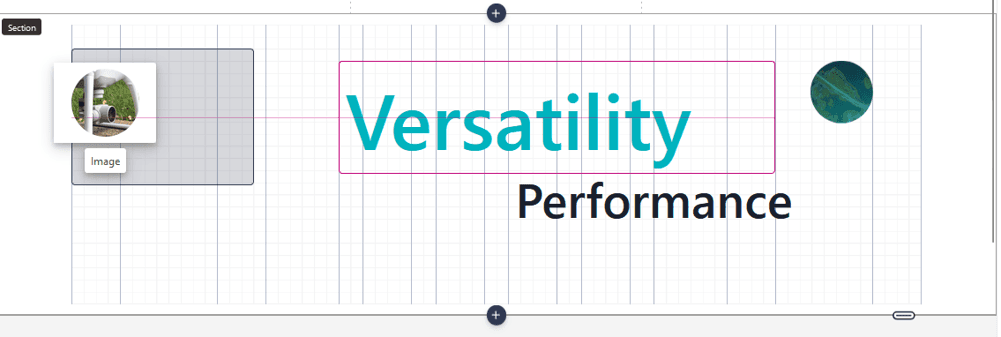
- Dynamic and visually appealing layouts: Ideal for internal portals, dashboards, splash pages or news highlights.
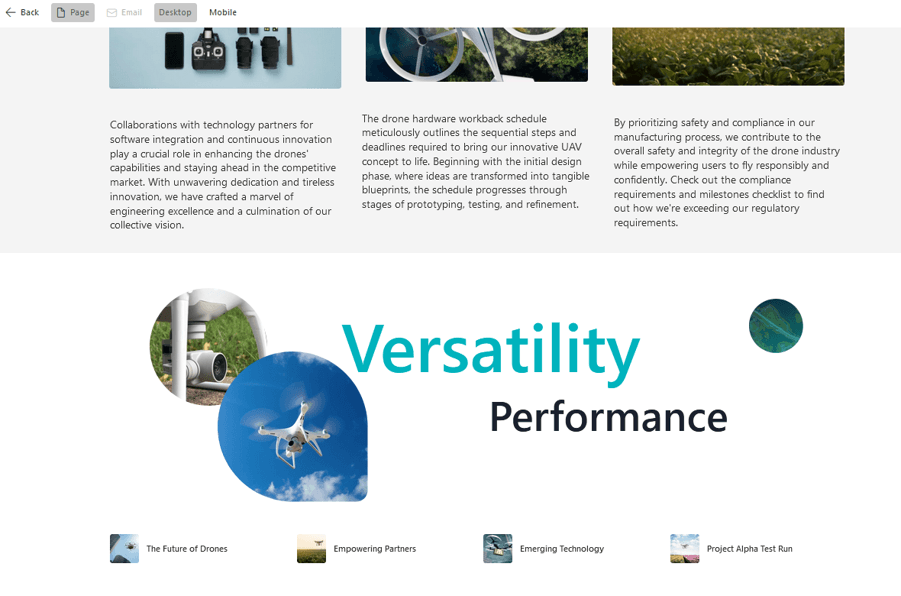
- Grouping and overlaying: Combine visual and text elements in a more creative way. Although not all web components support overlays, the design possibilities are greatly increased.
- Improved user experience: A more intuitive design makes it easier to navigate, understand content and interact with information.
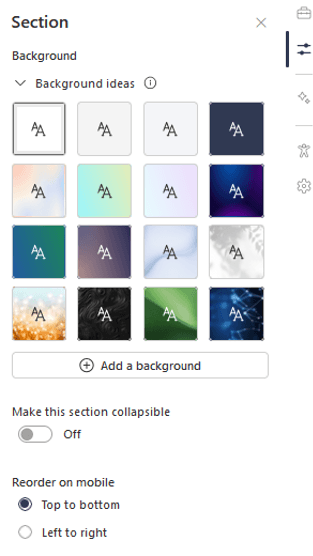
- Intelligent mobile adaptability: Flexible sections are automatically reorganised into a single column on mobile devices. In addition, you can define whether elements should be reordered from left to right or top to bottom, depending on what you want to prioritise.
Concrete examples of how to make the most of flexible sections
Flexible sections open up new aesthetic possibilities in SharePoint and also allow to solve specific communication and design needs within organisations. From more attractive intranets to more effective internal campaign pages. These examples illustrate how to make the most of the design freedom offered by flexible sections. Here are some scenarios where this functionality can make a real difference.
1. More modern and visual corporate Intranets:
- Before: Intranets used to be organised with rigid column structures, which limited creativity and made it difficult to prioritise information.
- Now: Flexible sections allow key blocks (notices, events, shortcuts) to be highlighted in more visual layouts. Related elements such as news, useful links and featured images can be grouped within a single visual block. Overlaying text and images allows you to create informative banners without the need for external development.
2. In-house news with striking design
- In the past: News items were flat text accompanied by an image, with little capacity for visual personalisation. They were difficult to differentiate or prioritise within a page.
- Now: You can create dynamic layouts with featured headlines, embedded videos, image carousels and call-to-action buttons. By grouping different types of content (text, video, links) together, you get an experience closer to that of an editorial article. The design makes it easier to capture the user’s attention and direct them to the key message.
3. Landing pages for internal campaigns or launches
- In the past: Creating a visually appealing landing page required intervention from the IT team or external tools. The result was limited and costly to maintain.
- Now: Teams can design campaign pages directly from SharePoint, without technical expertise. Blocks can be combined with custom backgrounds, use overlay elements and guide the user through a visual journey. Ideal for communicating launches, internal policies or key actions with greater impact.
4. Product or team pages with interactive multimedia content
- Previously: Internal product or team information was displayed in static structures, not very visual and difficult to update. It was difficult to integrate different types of content into a coherent presentation.
- Now: It is possible to build microsite-like pages that integrate descriptions, videos, KPIs, links and documentation into a single clear view. Flexible sections allow you to organise and prioritise content visually, automatically adapting to mobile devices. The result is a more interactive, up-to-date and useful page for different teams.
Conclusions
The introduction of flexible sections in SharePoint represents a great opportunity for companies to significantly improve content management. On the one hand, it allows content teams to design more dynamic and customised pages, better adapting to the specific needs of the organisation. On the other hand, it optimises productivity by facilitating faster and more efficient content creation and updating. In addition, the ability to move and resize web elements without structural constraints speeds up processes and reduces errors.
Delivering a better user experience is another key benefit. More attractive and functional pages improve internal communication and also ensure that information is accessible and easy to understand on any device. Ultimately, adopting this new feature can be a strategic step towards more efficient and effective content management.
If you want to explore how to implement flexible sections in your SharePoint environments or redesign your intranet with these new capabilities, Itequia can help you get the most out of it. Contact us.